
POD Express Edit 应用程序
The free POD Express Edit application can be installed on macOS & Windows® computers and iOS & Android™ mobile devices for in-depth editing, preset management, backups, and device firmware updates.

Important! It is required that your POD Express device is running firmware version 2.00 (or later) to be able to be used with the POD Express Edit application. The macOS or Windows app and Internet connection are required for device firmware updates. See Updating the Firmware.
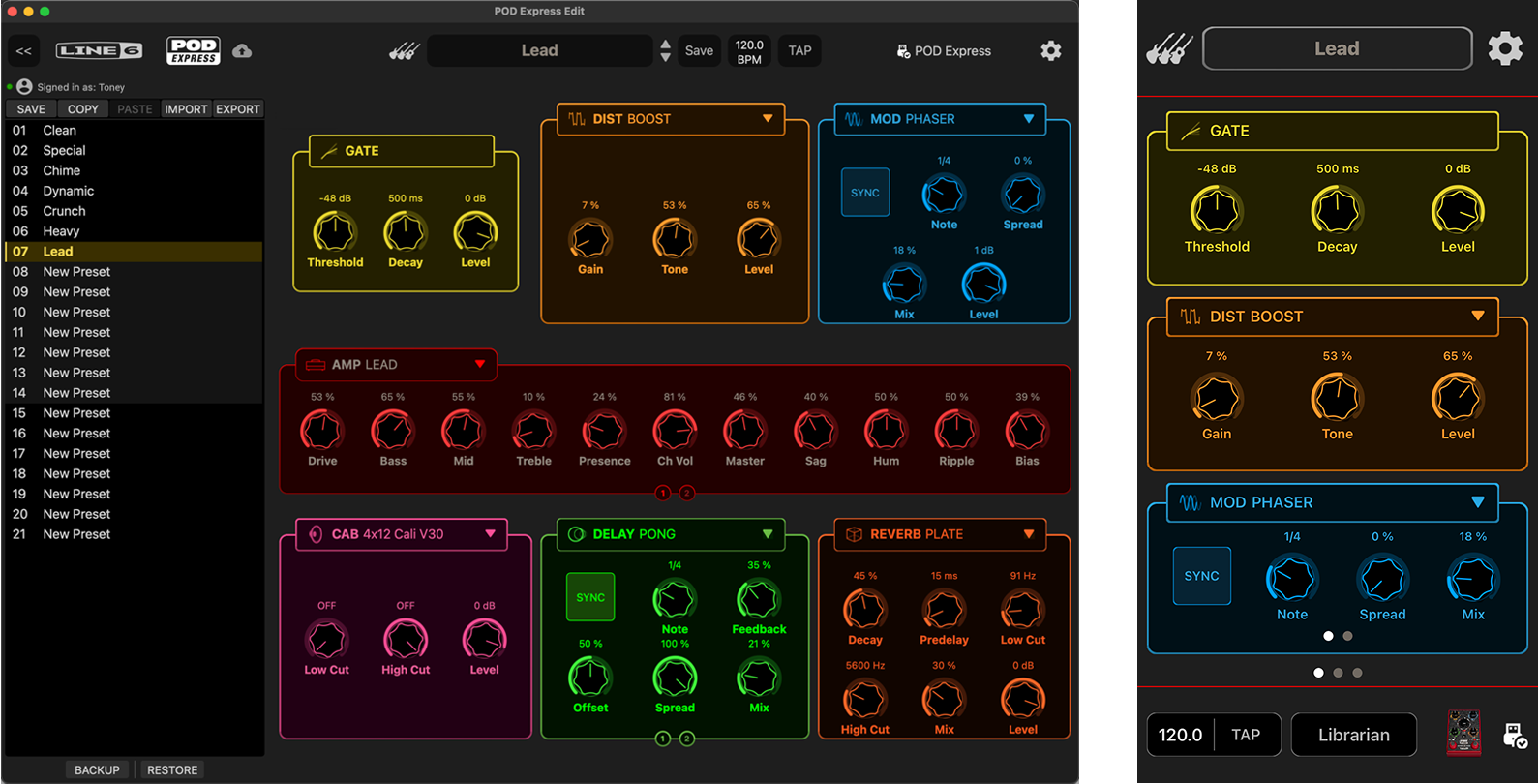
The POD Express Edit application (macOS and iPhone versions)
Software Requirements & Installation
POD Express Edit Minimum Requirements: macOS 10.14, Windows 10, iOS 12.1, or Android OS 6.0 (or newer versions).
For macOS and Windows Computers: Go to line6.com/software, download the POD Express Edit installer, then double-click the downloaded file and follow the on-screen instructions.
For iOS and iPadOS Mobile Devices: Visit the Apple App Store, search for the POD Express Edit app, and follow the on-screen installation instructions.*
For Android Mobile Devices: Visit the Google Play™ Store , search for the POD Express Edit app, and follow the on-screen installation instructions.*

*Note: For iOS, iPadOS, and Android devices that do not include a USB-C connection, a USB adapter is required (sold separately):
For iOS and iPadOS devices, a USB to Lightning (Camera Kit) adapter is required.
For Android devices, a USB OTG (On-The-Go) adapter is required. Check line6.com/android for more information.
Loading and Saving Presets
When using the macOS or Windows app, you can access your POD Express device’s presets by clicking click on the arrow buttons to the right or the Preset Name field to load the next/previous preset. The loaded preset’s name appears in the field, as shown below. For accessing presets in the mobile app and additional preset management tasks, you can use the Preset Library—see the following section.
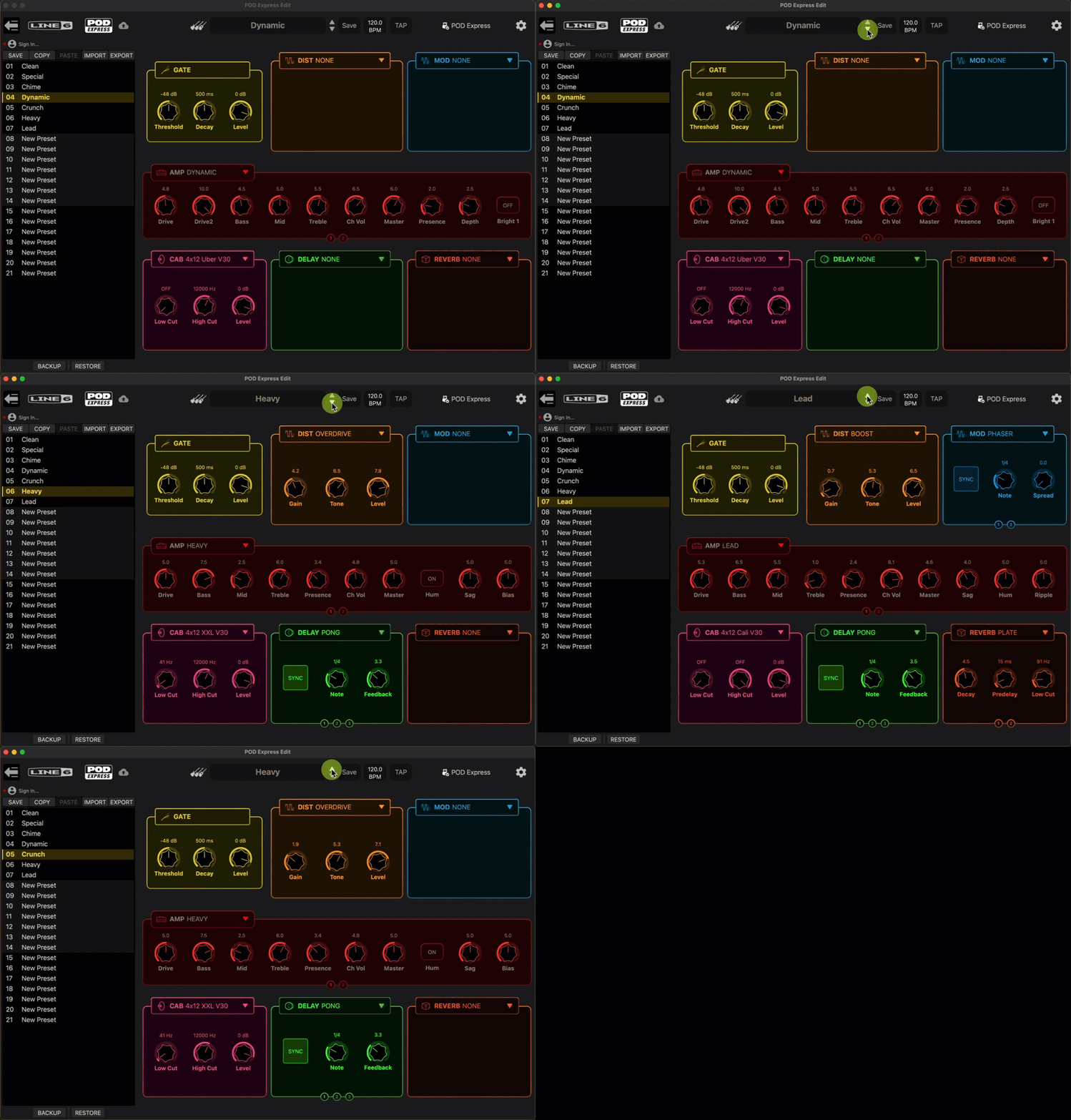
Using the Next/Previous Preset buttons in the desktop POD Express Edit app
Managing Presets in the Preset Librarian
The Preset Librarian can optionally be hidden or shown via the arrow button that appears at the top left of the app (or via the Librarian button within the Mobile app). The Librarian syncs to your device on app launch to display all its presets within locations 01 through 21. Click on any location to select its preset and use the Librarian command buttons to perform the desired preset management functions.*
Updating the POD Express Device Firmware
Updating your POD Express device will ensure you always have the latest models, features, enhancements, and bug fixes. To update your device, use the built-in Updater within the POD Express Edit application on your macOS or Windows computer. Go to the app’s Updater screen and follow the on-screen steps, as shown in the video below.
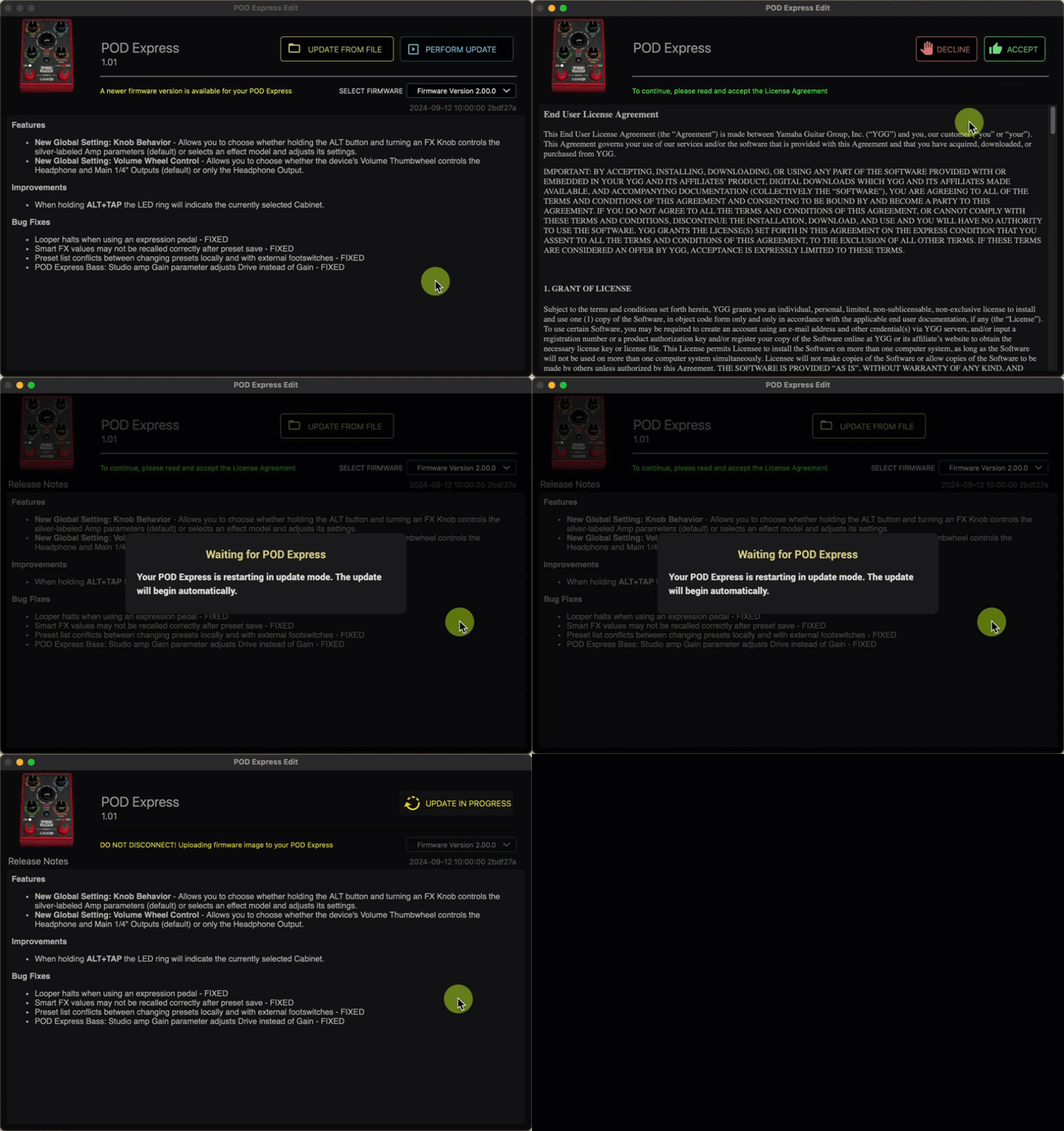
Updating the POD Express device firmware (macOS application)
Note: Alternatively, you can use the free Line 6 Central application for macOS and Windows computers to perform firmware updates on POD Express (and other current Line 6 devices), available from line6.com/software. The following update steps are very similar when using the Line 6 Central application.