
Démarrage rapide
This chapter will get you up and running with your new POD Express as quickly as possible. Please refer to the later chapters to dig into the details.
Installing Batteries
POD Express devices can be powered by three AA batteries (included). Please install the batteries as follows:
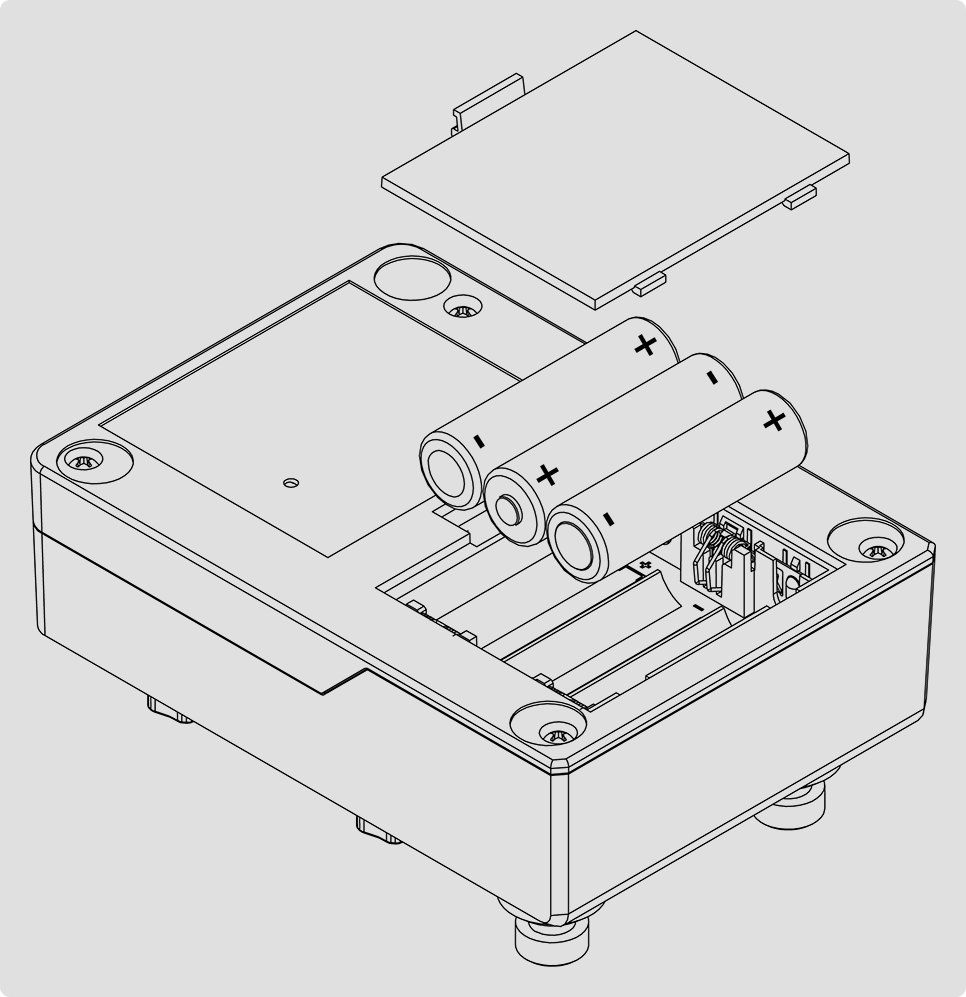
Installing batteries
Disconnect all cables from your POD Express device.
On the underside of the device, remove the battery compartment panel.
Insert three AA batteries, taking care to match the positive (+) and negative (-) markings on each battery with the markings inside each battery slot.
Replace the compartment panel securely.

Note: When using batteries, the device will automatically power on when you connect a cable into the IN jack. To power off the device, remove the cable from the IN jack. You should also be sure to disconnect PHONES to prevent draining batteries when the device is not in use. Batteries should be removed when the device is not in use for long time periods.

TIP: Optionally, you can purchase the Line 6 DC-1 power adapter from the Line 6 Online Shop to power your POD Express device.
Installing the Adhesive Rubber Feet
To ensure best adhesion, please follow these steps for applying the included adhesive rubber feet to the bottom of your POD Express device.
Clean the chassis surface where feet are to be applied with a mild solvent, such as isopropyl alcohol.
Apply when chassis and environment are at or near room temperature (approx. 70° F / 21° C).
Peel from backing and press and hold rubber feet firmly to the chassis for several seconds to apply. Avoid disturbing the rubber feet for up to 72 hours to allow for adhesive to fully bond.
Simple Setup
OK, no need to wait any longer—to follow is the quickest possible setup to get you up and running with your new POD Express device!
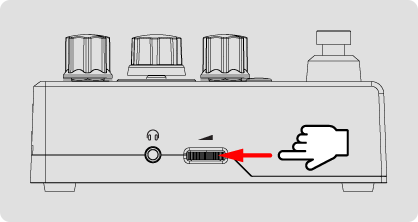
1. Turn the VOLUME thumbwheel all the way to minimum.
2. Use a standard instrument cable and connect your guitar or bass to the IN jack. Connect your headphones to the PHONES jack.
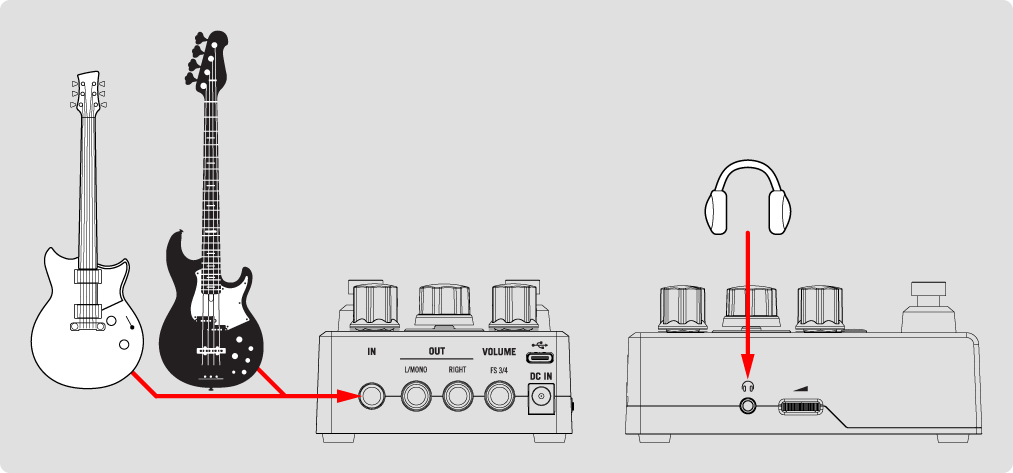
3. Play a note on your instrument and slowly turn up the VOLUME thumbwheel.
Now you're up and running! Try the following steps to explore more features.
Tune Up
Press and hold the TAP switch to engage the Tuner.
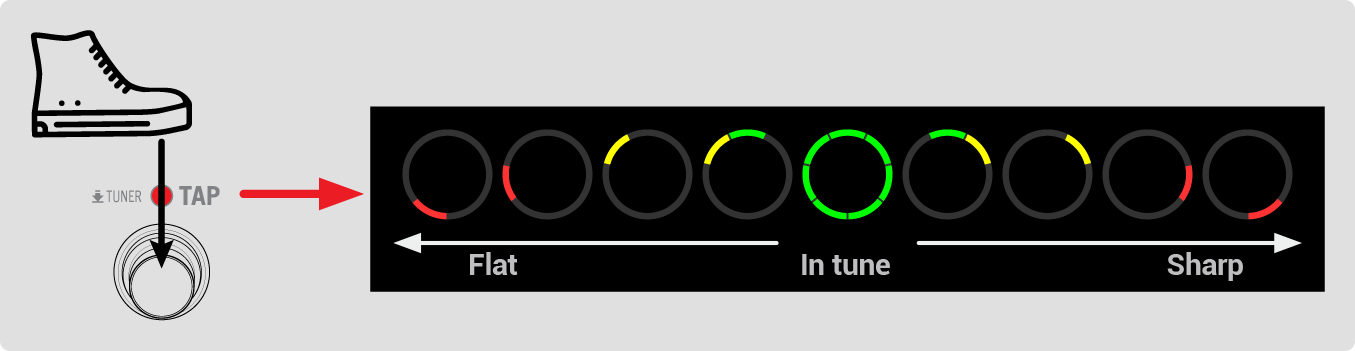
Using the Tuner
Pluck a string and adjust your string until you see the LEDs surrounding the AMP encoder all lit green. Press any switch to exit the Tuner when done.
Try Some Presets
Press and release both the ON and TAP footswitches together to enter Preset Mode. Turn the AMP encoder to load one of the 21 factory presets.
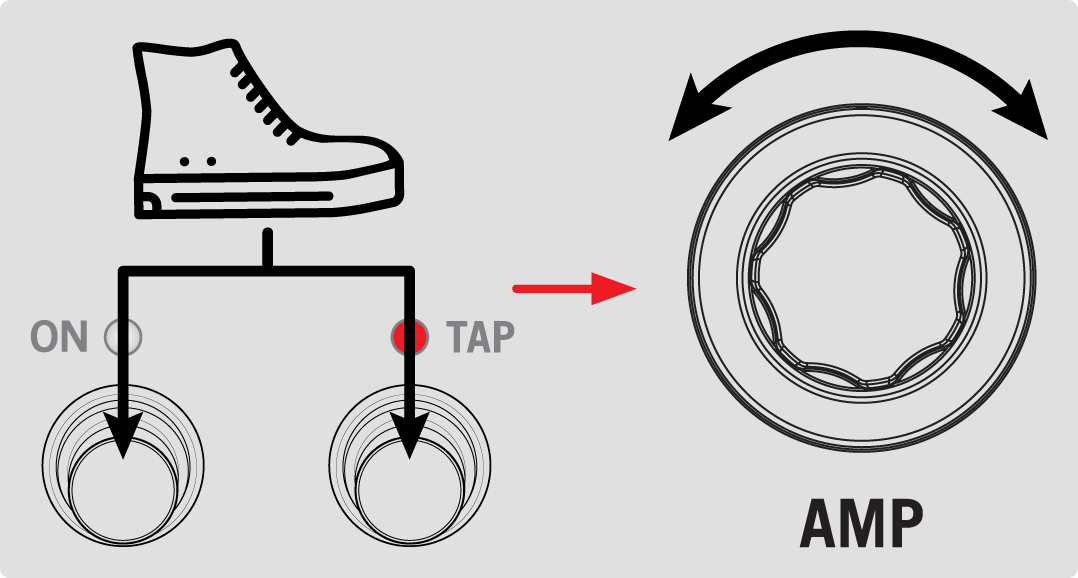
Entering Preset Mode and navigating presets
Once you have a preset you want to spend some time with or wish to edit, press both footswitches together to exit Preset Mode.
Try a Different Amp
When not in Preset Mode, simply turn the AMP encoder to load one of the seven amps.
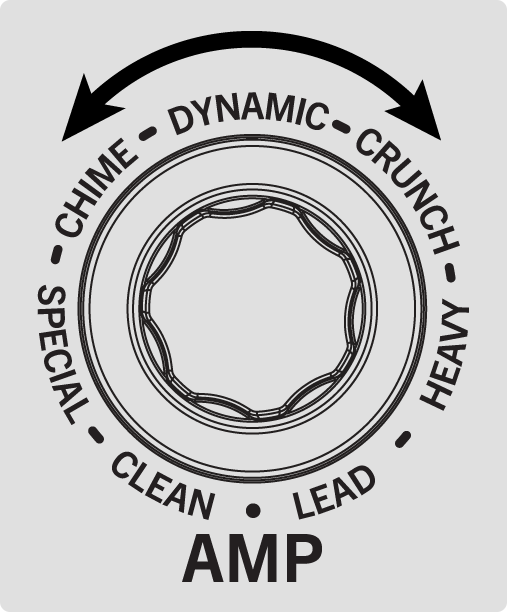
Selecting an Amp Model
(POD Express Guitar)
Try Some Effects:
Also, when not in Preset Mode, turn any Effects knob to enable one of its four models.

Selecting an Effect Model
(POD Express Guitar - Distortion)
Turn the knob slowly to adjust the current effect’s settings. Turn to minimum to bypass the effect.
Jam to Tracks
Connect your POD Express device to the USB port of your computer or mobile device.
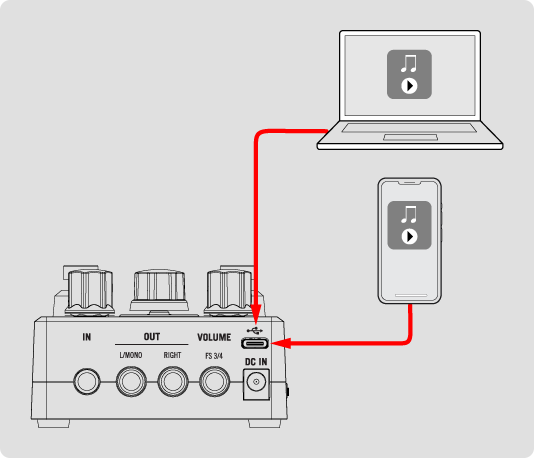
Connecting a computer or mobile device via USB for jamming and recording
Configure your computer/mobile device to use POD Express as its main audio playback device.
Play your favorite tracks through your music player app to hear them through POD Express to jam along to your heart’s content.
Congratulations, you’re now a POD Express expert!
Stop here, plug in, and go practice.
Wait, you want more? Well, okay—POD Express does have quite a bit of additional hidden functionality that may not be immediately apparent. For example, did you know you can swap out cabs, control a hidden noise gate, connect an expression pedal or external switches, customize footswitch functions, use POD Express as a USB audio recording interface, and a lot more?
The rest of this manual digs pretty deep, so proceed at your own risk!